To use IPTV for Firestick UK setups, turn on installs from unknown sources, install the Downloader app, open it and enter the code 2385038 to install Edge Player, then sign in with the login details your provider sends. Use an ethernet adapter or a strong Wi-Fi signal, keep the Firestick updated and restart it if streams slow down.
The Amazon Fire TV Stick is the most popular way to watch IPTV in the UK. It is small, cheap, plugs into any TV with an HDMI port and runs the apps we recommend smoothly. It also has a very active owner community, so fixes for common problems are easy to find.
This guide covers IPTV for Firestick UK owners from the first plug-in to everyday troubleshooting. If you have not bought a device yet, read our IPTV box UK guide first. If you are still choosing a service, start with the best IPTV UK checklist.
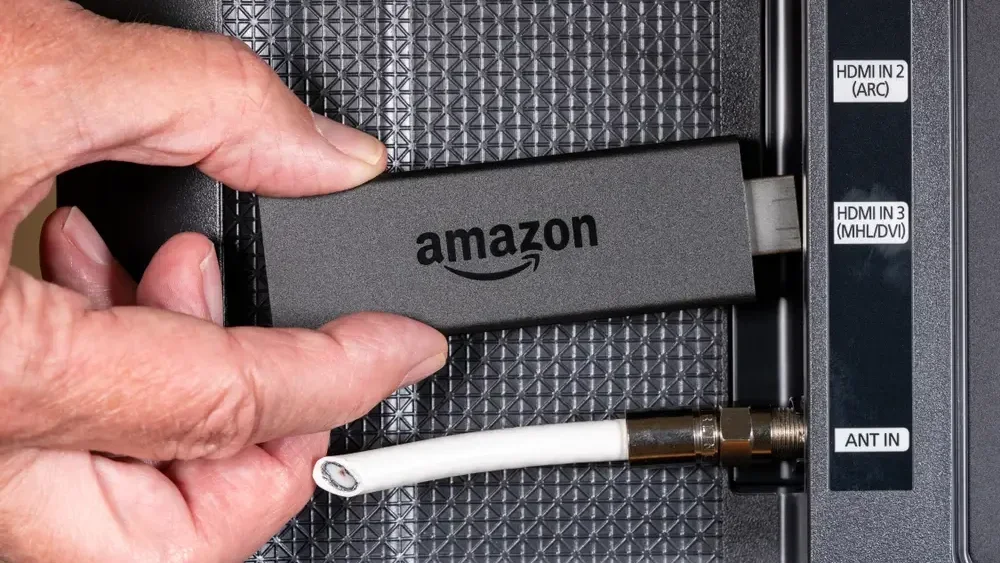
Table of Contents
- Before You Start With IPTV for Firestick UK
- IPTV for Firestick UK: Step-by-Step Setup
- Settings That Improve IPTV for Firestick UK
- Fixing Common Firestick IPTV Problems
- Keeping Your Firestick Running Well
- Frequently Asked Questions
Before You Start With IPTV for Firestick UK
A few minutes of preparation prevents most setup problems:
- Plug the Firestick into a spare HDMI port and connect it to your Wi-Fi
- Make sure the Firestick has finished its updates
- Have your IPTV login details ready, which we send on WhatsApp
- Check that your broadband gives at least 10 Mbps for HD, or 25 Mbps for 4K
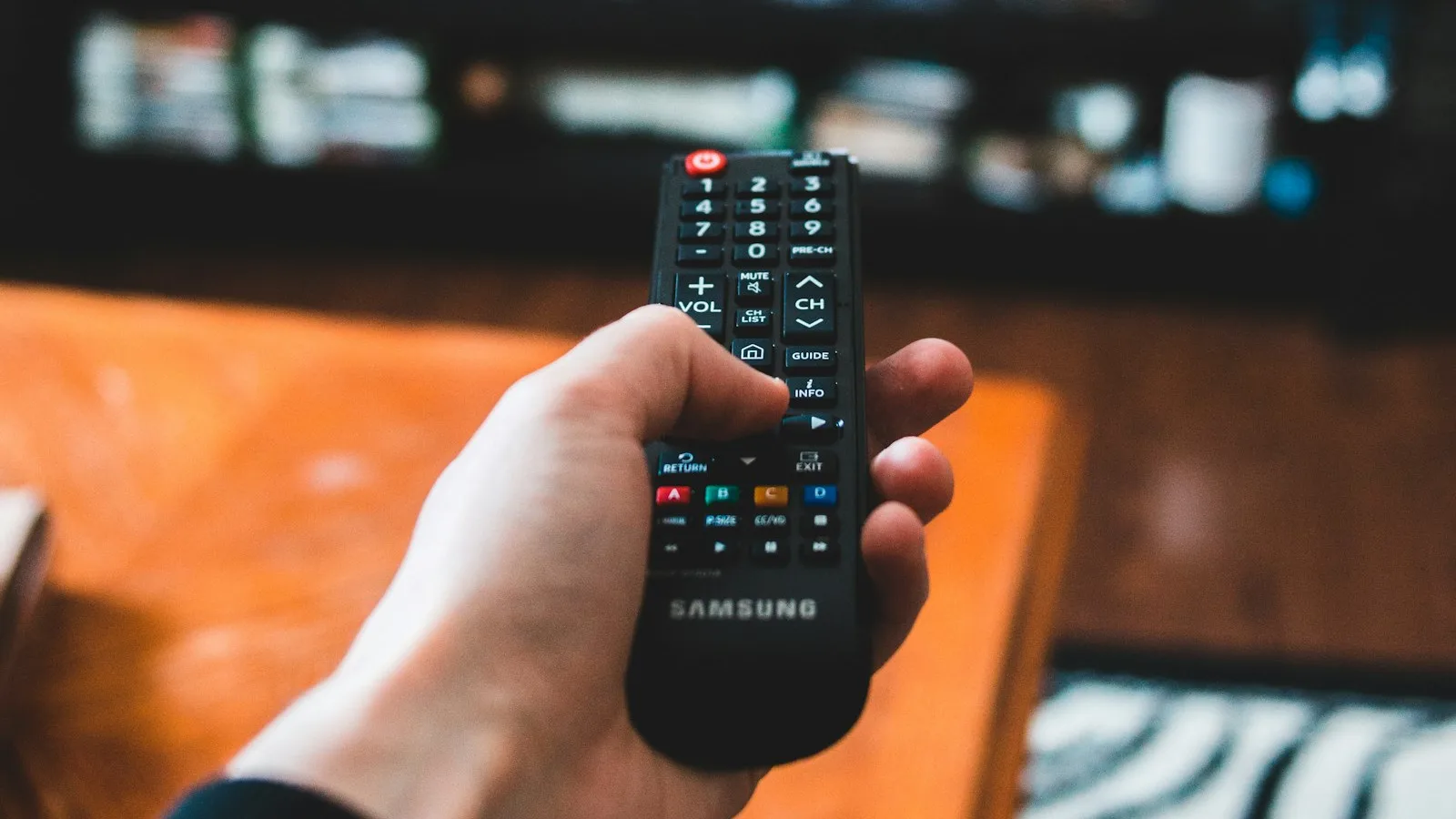
- Keep the remote batteries fresh, because typing codes is slow with a weak remote
If you do not have login details yet, ask for a free trial and we will send them.
Which Firestick should you choose?
Any recent Firestick can run our apps. Newer models generally have more memory and a faster processor, which makes menus snappier and 4K smoother, while older and cheaper models are fine for HD on a single TV. If you mainly watch HD, you do not need the most expensive version. If you own a 4K TV and want the best picture, choose a model that clearly states 4K support.
IPTV for Firestick UK: Step-by-Step Setup
These are the steps we use for our own customers. Menu names can vary slightly between Firestick versions, but the order is always the same.
Step 1: Allow installs from unknown sources
On the Firestick home screen go to Settings, then My Fire TV, then Developer Options, and turn on Apps from Unknown Sources. On some versions you will switch it on for the Downloader app after you install it.
Step 2: Install Downloader
Use the search function on the home screen, search for Downloader, and install it from the Amazon Appstore. Open it and allow the file and media permission when asked.
Step 3: Enter the Downloader code
In Downloader, select the address field and enter the code 2385038, then choose Go. Downloader fetches and installs Edge Player automatically.
Step 4: Sign in
Open Edge Player and enter the login details we send you on WhatsApp. Wait for the channel list to load. The first load can take a minute because the app is downloading your channel and on-demand lists.
Step 5: Start watching
Pick a channel and check that the picture and sound are working. Press the options button on the remote to find the programme guide and favourites. If anything looks wrong, jump to the fixes below, or see our full IPTV setup guide for other devices.
Settings That Improve IPTV for Firestick UK
You do not need to tweak much, but these changes help most people:
| Setting | Why it helps | What to do |
|---|---|---|
| Wired connection | Removes Wi-Fi interference | Use an ethernet adapter if the router is nearby |
| Video resolution | Matches your TV | Set the Firestick to the best your TV supports |
| Data monitoring | Stops background data use | Turn it off in Preferences if available |
| App notifications | Reduces background activity | Disable ones you do not need |
| Automatic updates | Keeps the system current | Leave updates on and restart weekly |
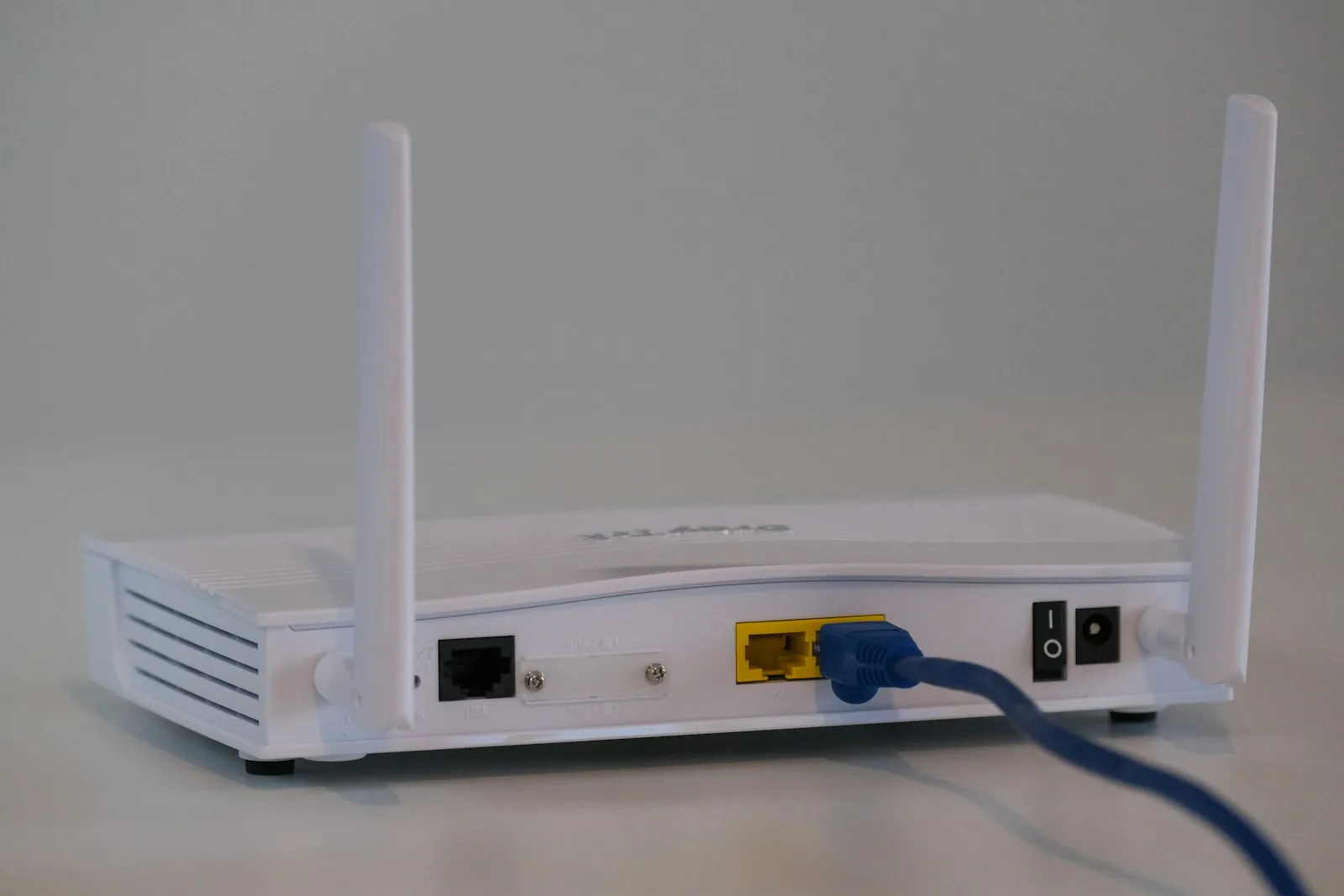
A weak Wi-Fi signal is the most common hidden cause of poor streams. Place the router in a central spot, away from thick walls, or use an ethernet adapter to bypass the problem entirely.
Fixing Common Firestick IPTV Problems
Most problems with IPTV for Firestick UK setups have simple fixes, and you can try them in this order without any technical skill.
Buffering or freezing
Restart the Firestick by unplugging it for ten seconds, restart your router and try a wired connection. If buffering only happens in the evening, test at different times to see whether your broadband is the cause. Our guide to the IPTV UK free trial explains how to test properly.
The app will not open or keeps closing
Clear the app cache in Settings, Applications, Manage Installed Applications, select Edge Player and choose Clear cache. If that fails, restart the Firestick, and as a last step reinstall the app with Downloader and the code 2385038.
The channel list will not load
Check that your internet works on other apps, then confirm your login details were typed exactly as sent. Letters that look alike are easy to confuse, so copy them carefully. If it still fails, message us on WhatsApp with your device type and we will check your account.
Low storage warning
The Firestick has limited space. Uninstall apps you do not use and clear caches. Keep a few hundred megabytes free so updates can install.
Keeping Your Firestick Running Well
A little care keeps IPTV for Firestick UK viewing smooth month after month:
- Restart it once a week, because a fresh start clears small faults
- Keep it cool, with space around the stick and not wedged behind a hot console
- Use the power adapter that came with it and not a weak USB port on the TV
- Keep the Firestick and the app updated
- Buy from a UK retailer, so you have a proper warranty
Frequently Asked Questions
Allow installs from unknown sources, install Downloader, open it and enter the code 2385038 to install Edge Player, then sign in with your login details. The whole process takes about ten minutes.
For our service we recommend Edge Player on a Firestick, installed with the Downloader app and the code 2385038. Other devices use different apps, listed in our setup guide.
Yes. IPTV for Firestick UK owners is affordable, simple, fast enough for HD and 4K on newer models and supported by the apps we recommend. A wired connection makes it even more reliable.
Usually a weak Wi-Fi signal, busy evening broadband or an overloaded Firestick. Restart the stick and router, try ethernet and clear the app cache. If it only happens at peak time, speak to your provider and your broadband company.
No. A VPN is not needed to set up or stream with our service. Some people use one for general privacy, but it is optional.
Conclusion
Getting IPTV for Firestick UK homes enjoy is a short, repeatable process: allow unknown sources, install Downloader, enter the code and sign in. Add a wired connection, restart weekly and you will avoid most problems. If you hit anything these fixes do not cover, message us and we will help directly.
Not ready to subscribe? Ask for a free trial, compare options in our IPTV providers UK guide or check the pricing.
Ready to try IPTV on your Firestick? Request a free trial and we will send your login details.
Request Free Trial on WhatsApp